Dotted text Photoshop tutorial

With this tutorial I am going to show you how you can create dotted text like this

Final photoshop tutorial result

1. First of all create a new document with a white background, pick the text tool and type your text. I just typed PSTUTORIALS
photoshop tutorial initial text

2. Then right click on the text and select “Create Work Path”
create work path photoshop menu

3. You can now delete the text layer since we don’t longer need it.

4. Select the brush tool and in the brushes menu use these settings.

brush settings screenshot

5. Select the paths tab which is next to the Layers and Channels tab (you should now see your text as a path) and click on arrow on the upper right corner.
photoshop paths tab

6. Click on the “Stroke Path” option.
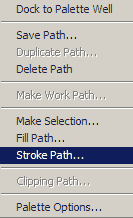
stroke path option screenshot

7. A new window will pop up. In that window select “Brush” from the dropdown menu.
stroke path with brush option

We are all done. Here is my final result (I added a drop shadow style)
Final photoshop tutorial result

photoshop, tutorial, tutorials, text, effect, dotted

About Dimitris

My name is Dimitris and I am from Greece. I created this blog as a learning tool for Photoshop both for other but for me as well. I am definitely no Photoshop Guru or a professional graphic designer, I am just an amateur trying to learn as much as I can about Photoshop.

3 Responses to Dotted text Photoshop tutorial

  1. couldnt follow January 9, 2006 at 12:45 pm #

    stroke path is disabled for me. doesnt work!

  2. SourceOne January 14, 2006 at 5:33 am #

    You have to make a new layer, select it and then go to paths.

  3. Dimitris January 14, 2006 at 8:13 am #

    Hi, yes you can create a new layer, however if you start with a not-transparent document and you delete the text layer (step3) there is no need to create this layer.