I have created a small simple Photoshop action for sharpening images. This action uses the high pass sharpening technique which I believe is better than using unsharp mask. Within the action set I have included three small variations of the action, the only difference between them is the blending mode applied (Overlay, Soft light and Hard light). To use this action download the zip file below and extract the .atn file at your actions folder which by default is C:\Program Files\Adobe\Photoshop X\Presets\Photoshop Actions (replace the X with the photoshop version you are using). Load them at your actions palette, open the image you want to sharpen and just hit play.
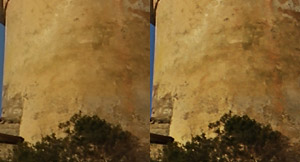
Preview (100% crop)
Original ———————–> After running the action


Just what i was looking for, thanks!
That sounds interesting but although the action appears in my palette I see a circle with a diagonal line through it when I try to use it. No doubt this is something obvious to a more experienced user but could you help me out here.
I do have CS2 and I was using a picture that responded to one of the imbedded actions Close that I tested it with.
This action was created with Photoshop 7, however I have tested it under Photoshop CS and it works. Can you give me some more details about your operating system (It was created using Windows XP).
I’m using XP too. Your file is in the exact place that you specified and its title appears in the Actions palette. The circle with the diagonal line across appears against the first three buttons on the palette.
Is there any other requirement in PS to use the action apart from having a picture open?
Sorry Peter, I have tried almost everything to see what might be wrong. I tried the action on different images, downloaded the one found here to see if the zip file is corrupt but I can’t find the problem. The only suggestions that I can possibly make is to redownload the file and try extracting it from the zip file with a different program.
Nice, just what i wanted.
Worked great for me. This is an excellent way to sharpen. Thank you.
This is no sharpening. It’s contrast. And that can easily be done with Adjust > Brightness&Contrast. So this ‘sharpening’ action is very bad.
Sorry, but it just does not work for me.